
New Test Case
Create automated tests that confirm your app still works as expected
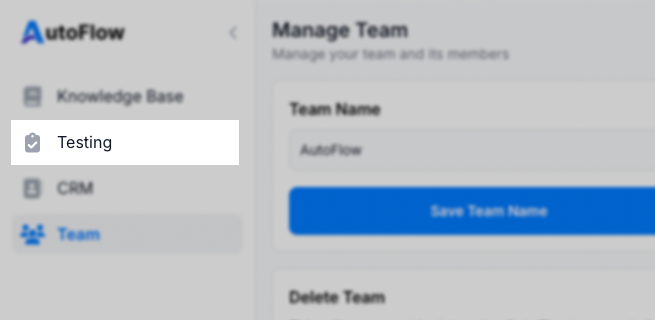
1. Go to the Testing page
Click the Testing button in the sidebar to open the Testing home page
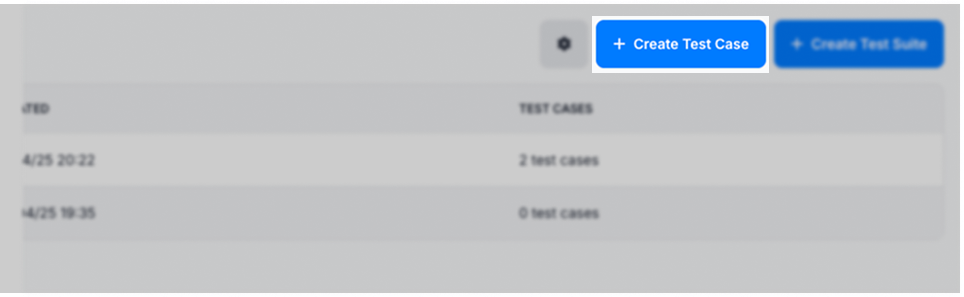
2. Click the "Create Test Case" button
Click the "Create Test Case" button in the top right-hand corner of the page. This will open the test case builder page and allow you to begin creating your test case.
3. Set basic test case details
Set the name, description and starting URL for your new test case.
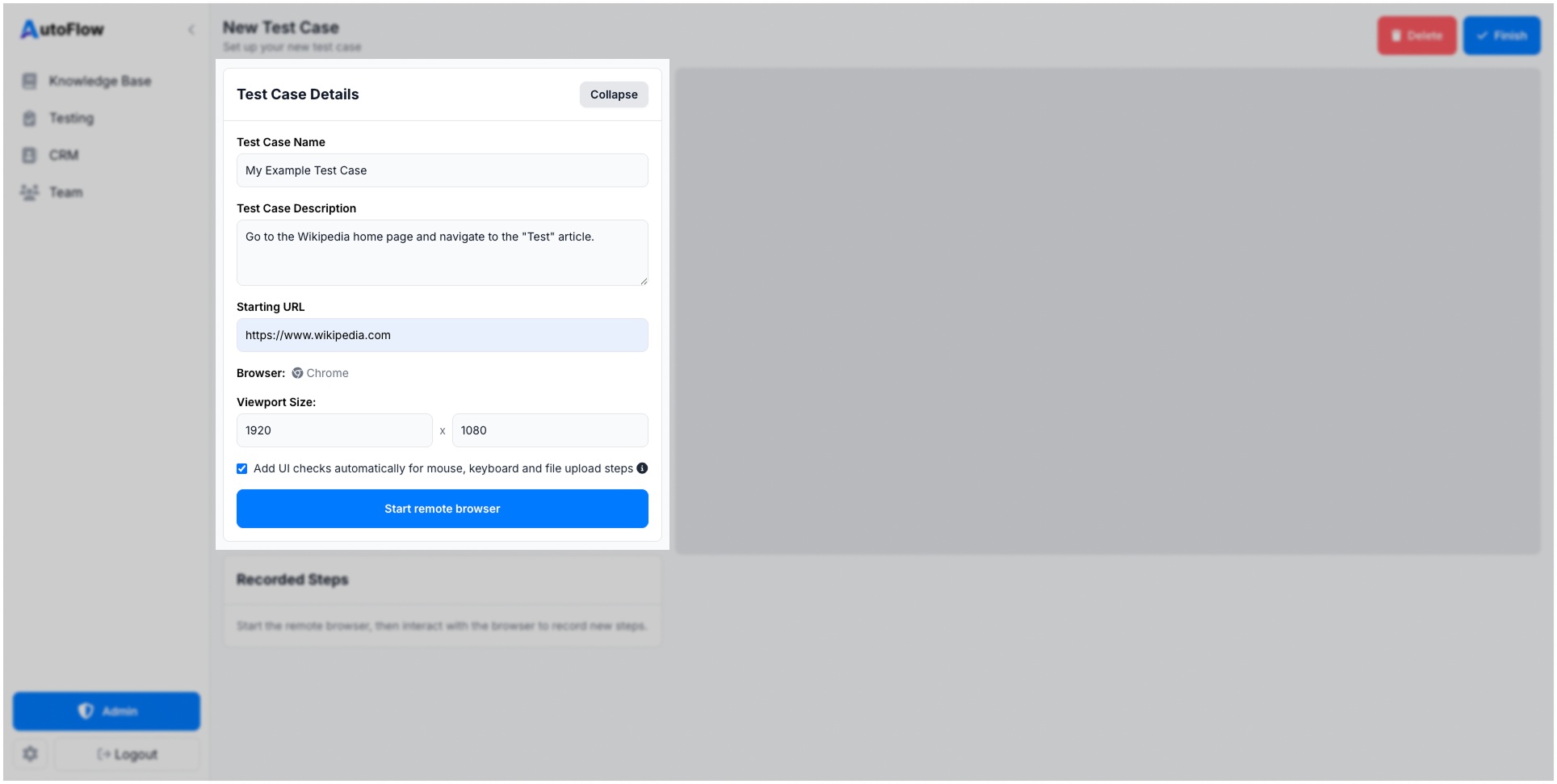
4. Click the "Start remote browser" button
Once your basic test case details are set up, click the "Start remote browser" button to launch a remote browser that you can then use to create your test case.
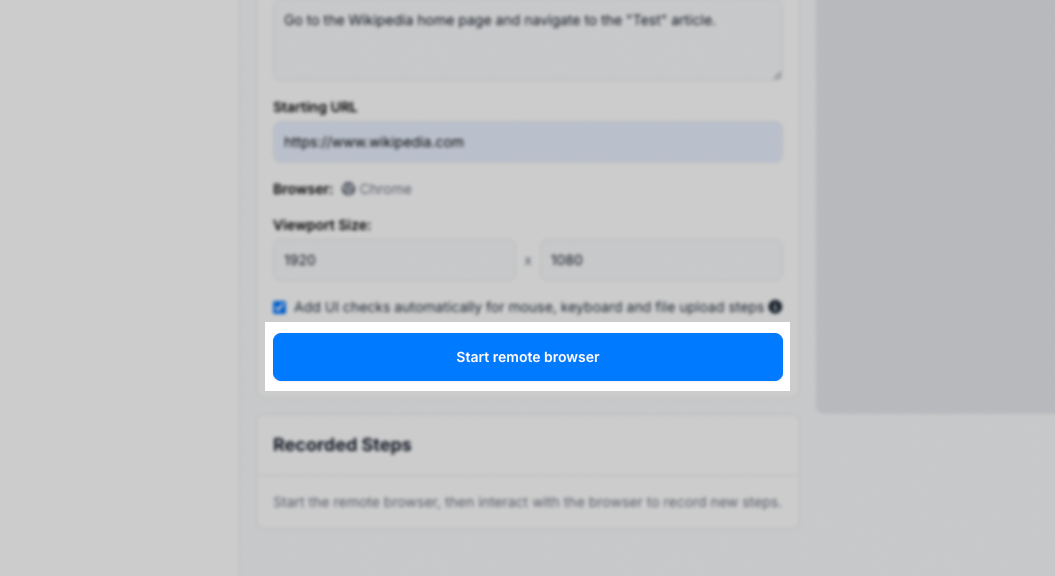
5. Wait for the remote browser to start
You will see a loading spinner whilst the remote browser is started. Wait for the remote browser to be initiated, you will know it has started as we'll remove the loading spinner and show you a live stream of the browser that has now navigated to the starting URL you set in step 3.
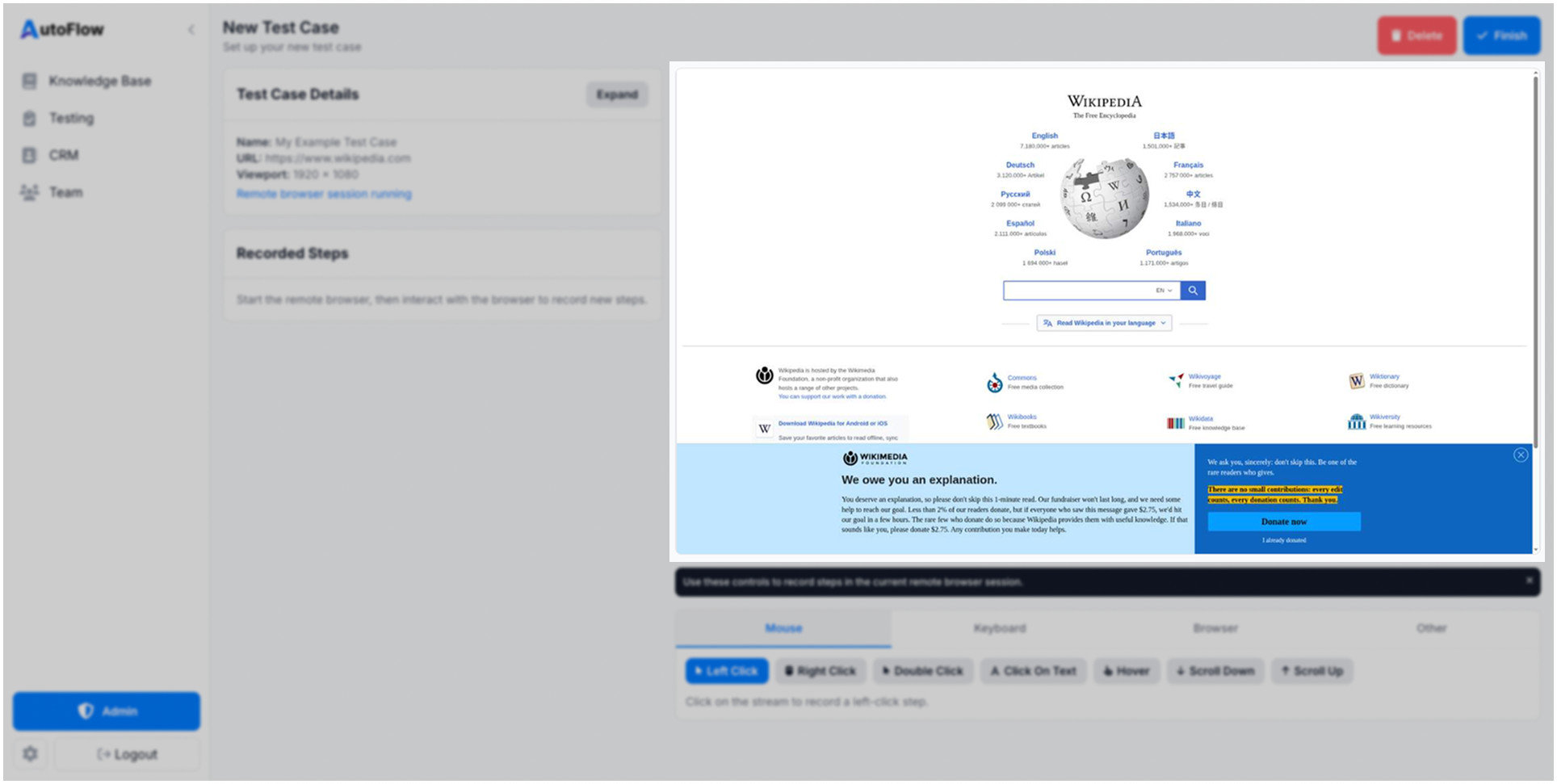
6. Add test steps
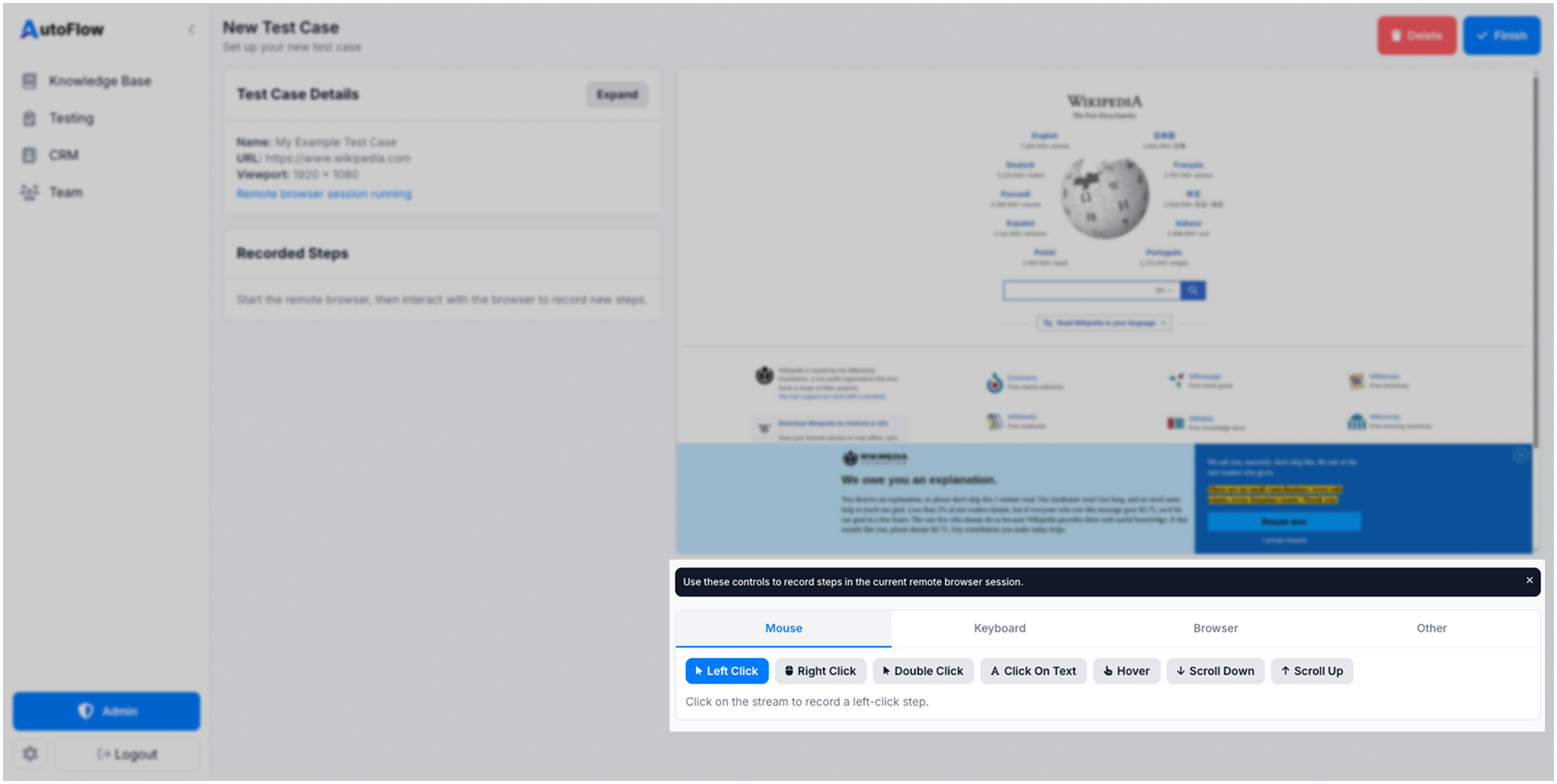
Use the test step controls - positioned underneath the browser live stream - to add the test steps for your new test case.
Each time you add a new test step you will see the new step is added to the 'Test Steps' list (positioned under the Test Case Details section). The browser live stream will also update to show the action has been taken and the browser is ready for the next test step to be added.
7. Click the "Finish" button
Once you have added all of your test steps, click the "Finish" button. This will shut down the remote browser and the take you to the test case detail page for your new test case.
8. Review the test detail page
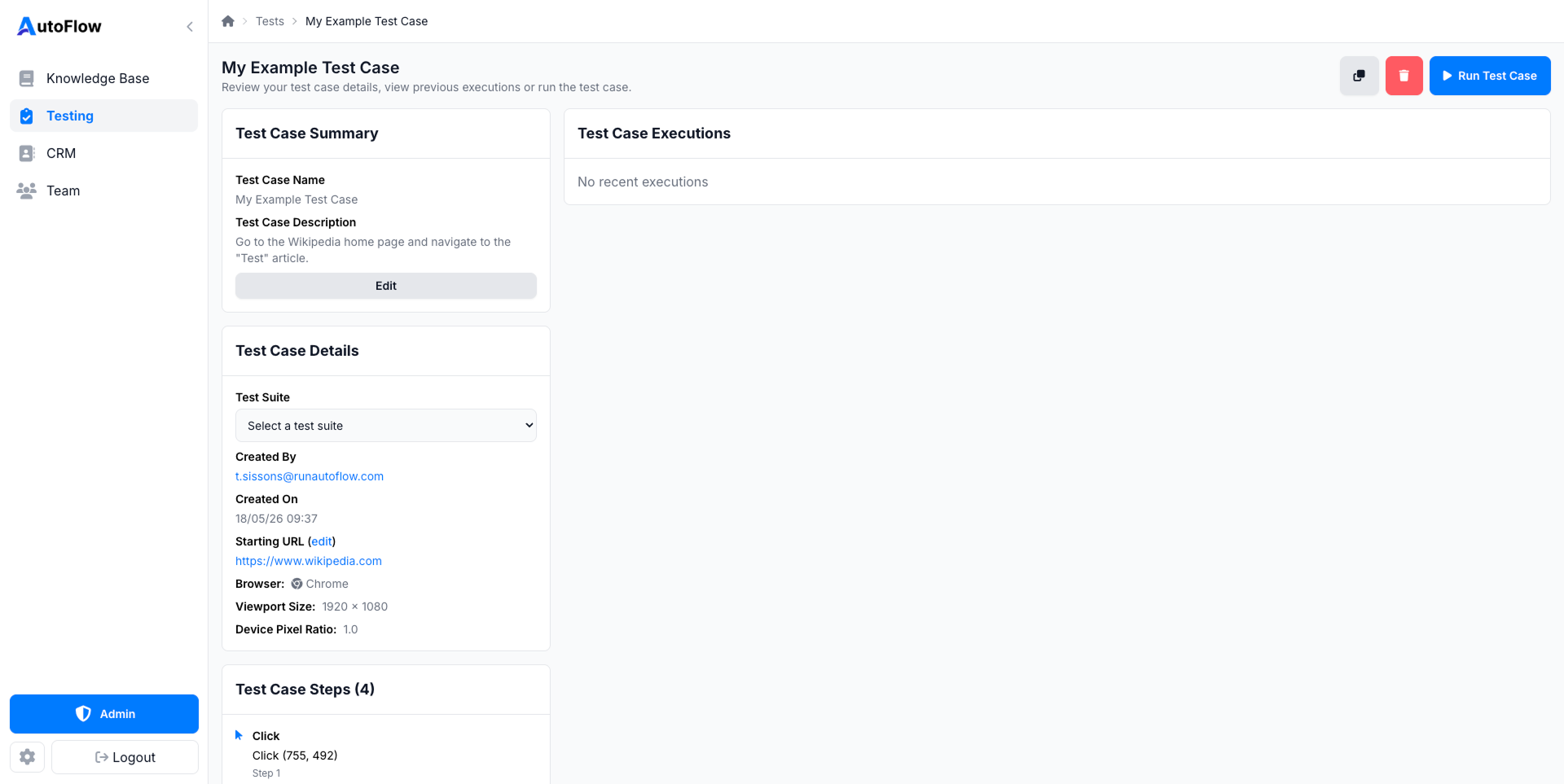
Review the details and test steps listed on the test case detail page to confirm that the test case has been set up as you expected.
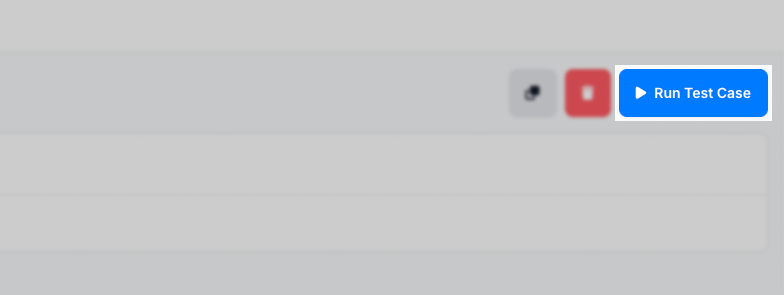
9. Click the "Run Test Case" button
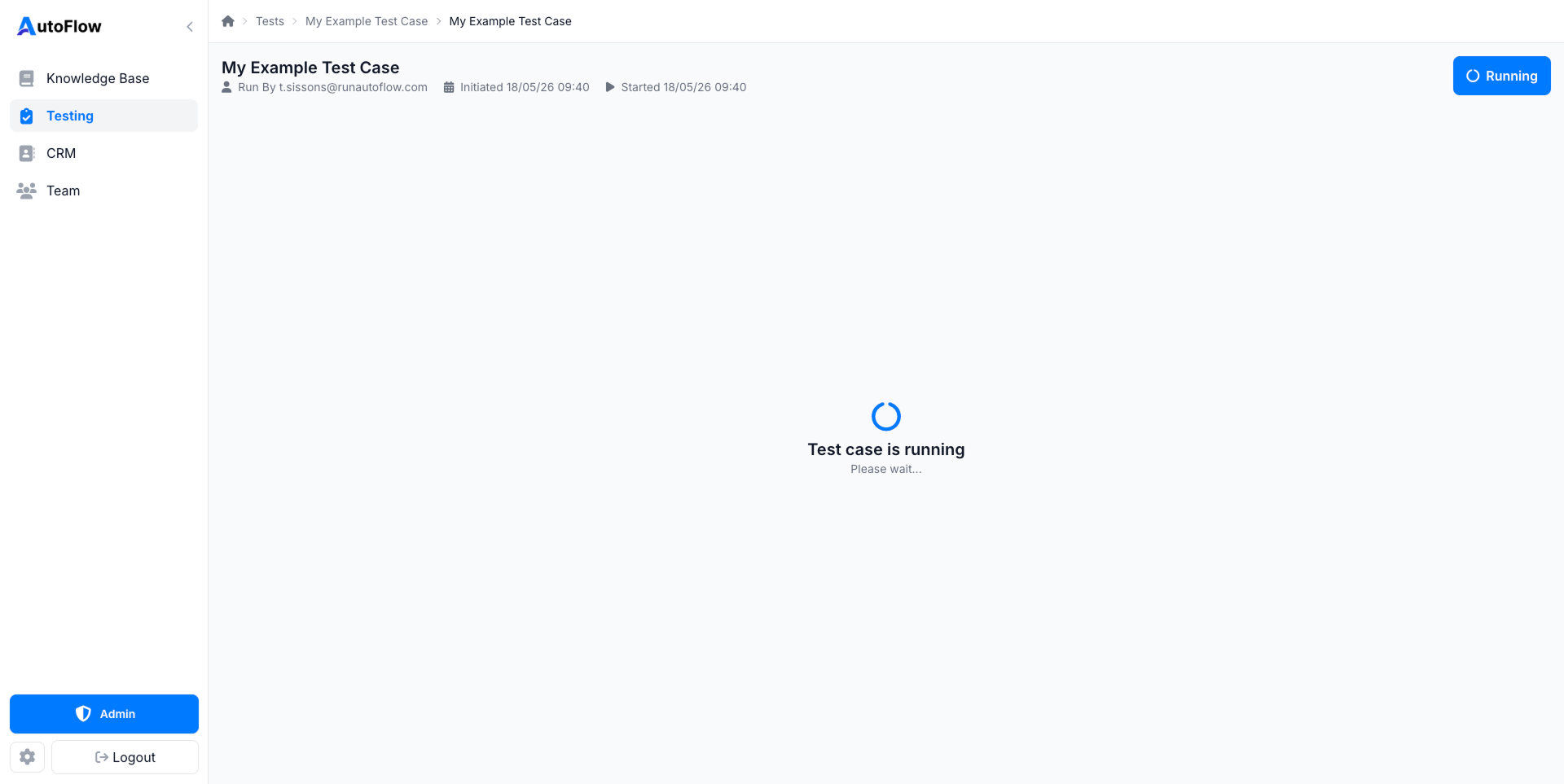
Click the "Run Test Case" button to run your test case. We suggest you run the test case once immediately after setting it up and then review the results to confirm that it runs as expected.